Zunaid Khan
Forum Replies Created
-
AuthorPosts
-
 July 1, 2020 at 12:46 pm #8934
Hi Anzelle
1. You cannot import transactional data – only Master Data.
You can see that here on this page:
http://help.accounting.sageone.co.za/en_au/accounting/au-importing-and-exporting-data.html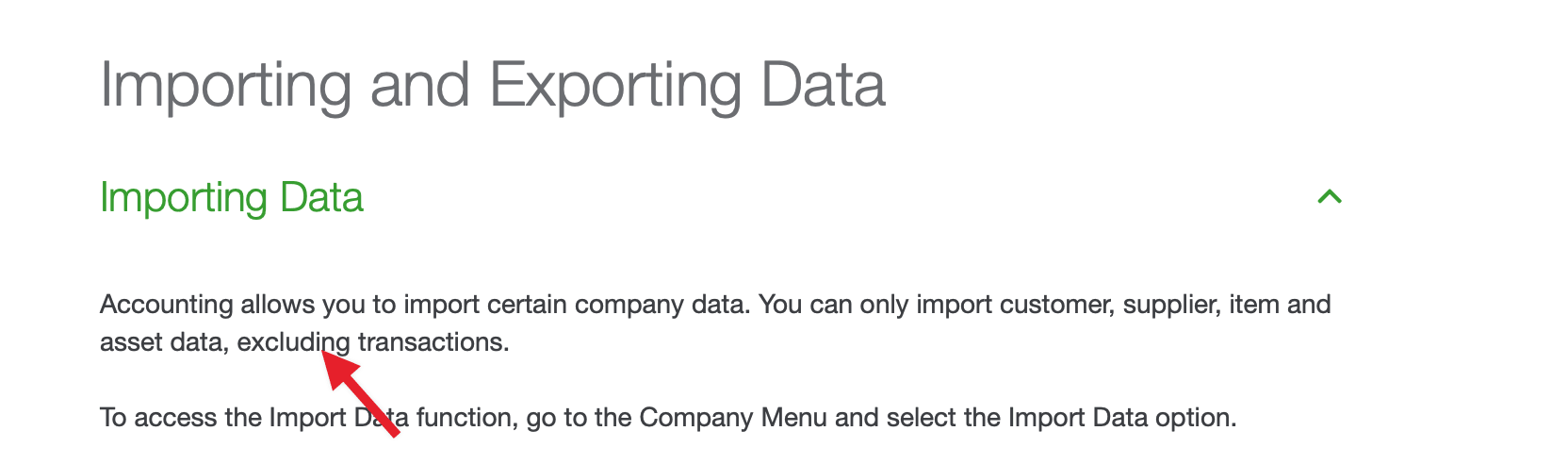
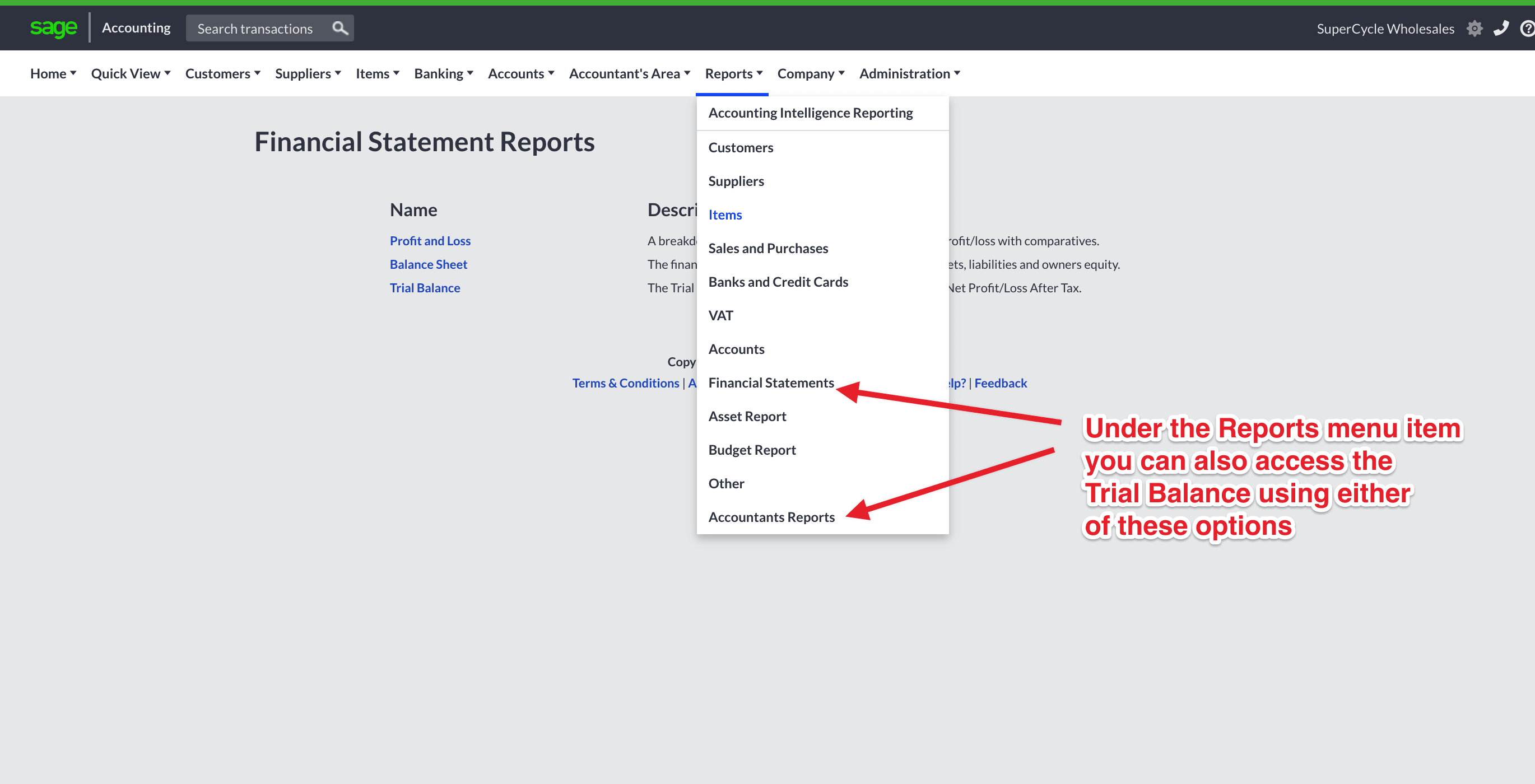
2. It is under the Accountants Area but also under the Reports area. Please see below
 June 29, 2020 at 12:12 pm #8922
Hi Anzell
Since that would be on a live company you would need to contact Sage One support directly.
Someone would need to login to the account. Also Sage can see from their side if there are any connectivity issues etc.
I’d only be able to assist on a training setup i.e. on the manual case study.
Kind regards
Zunaid
June 19, 2020 at 3:20 pm #8847Hi Anzell
Please try both options mentioned in the answers here:
https://answers.microsoft.com/en-us/msoffice/forum/all/how-to-change-semicolon-to-comma-when-saving-csv/cf7c9537-82da-448d-9516-82f3a4b13faeIf those don’t work then please just use the method shown in the video below:
June 17, 2020 at 6:22 pm #8823Hi Anzell
Please attach a copy of the file here for me to have a look.
Kind regards
Zunaid
June 10, 2020 at 12:07 pm #8714Hi Anzell
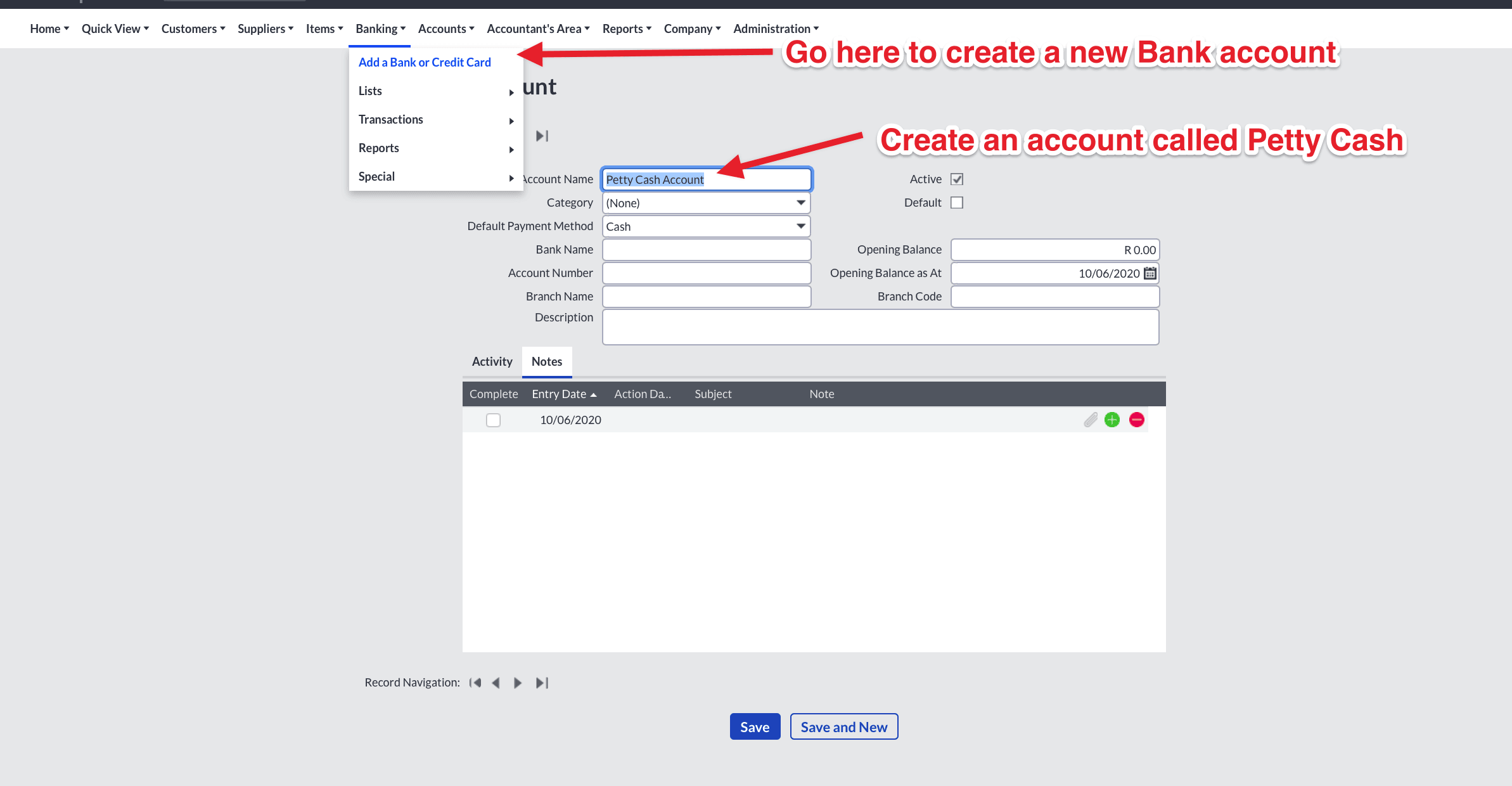
Yes definitely.
Simply set it up as a different cash book i.e. the same way you would a bank account.
See the screenshot below:
 June 2, 2020 at 7:59 pm #8687
Hi Zaheeda
You are correct that the TB is obtained from the Accountants area.
However, it is also accessible from the Reports sub-menu.
So based on the available options on that question, Reports would be the correct answer.
Hope that makes sense.
Kind regards
Zunaid
May 4, 2020 at 4:05 pm #8427Hi Zaheeda
That usually happens when your computer system setting has a semi-colon set as the list separator instead of a comma.
Close Excel.
Then do this:
Click on the Start menu.
Type control panel.
Click on Control Panel (Desktop app).
Select Clock, Language, and Region.
Click Region.
Select Additional settings in the pop-up window.
Change the List separator to comma.
Click Apply.
Hit OK.Then try re-opening the file.
Please let me know if that works.
Kind regards
Zunaid
February 17, 2020 at 5:46 pm #7986Congratulations Christina.
Yes – Sage unfortunately don’t provide details on the incorrect answers.
Wishing you all the best.
If you can leave a testimonial for us, it would be much appreciated.
https://www.talentstream.co.za/submit-student-testimonial/
Kind regards
Zunaid
February 10, 2020 at 6:13 pm #7977Hi Christina
If you still have to complete the first VAT return then don’t worry – when you go into the function as per the screenshot above it will ask you for those dates again.
And even if you have already submitted a VAT return there is an option to clear everything and start again.
Please let me know if you still experience any issues.
Kind regards
Zunaid
February 8, 2020 at 5:27 pm #7962Hi Christina
You shouldn’t normally clear that after its set.
What is your reason for wanting to do so ?
Remember the first time you do a VAT return you will set that date as the end of the month before the first VAT period you submit on Sage One.
You will do that under the menu function below
So lets say that the first VAT return you will be submitting on the Sage One system is for January and February 2020. Then you would set that Last VAT Period End Date as 31 December 2019.
This way the system knows when you go into submitting a VAT return which is the next period it is going to submit for.
January 30, 2020 at 12:15 pm #7934Hi Christina
Please see the video below and let me know if that resolves the issue for you.
June 11, 2019 at 6:27 pm #6556Hi Elize
It is just the one but it should have you covered.
Please make sure you also watch the video here:
Good luck and let us know how it goes.
Kind regards
Zunaid
May 25, 2019 at 9:58 pm #6403Hi Smangaliso
We generally don’t issue mock codes for the Sage Training Zone as there have been some problems with them in the past.
This is the reason we created the video showing the exact same process here:
We have now loaded one for you on your profile here:
May 23, 2019 at 2:11 pm #6385Hi there
Please see the video on this page which covers the trial assessment:
Kind regards
Zunaid
February 18, 2019 at 8:33 pm #5853Congratulations Elizma.
Thats a brilliant result !
Well done.
Kind regards
Zunaid
September 13, 2018 at 10:14 pm #4912Hi Nicola
Supplier invoices can be edited, even after having been processed and printed.
The line on Page 56 is an error.
Please see the following video.
Kind regards
Zunaid
July 19, 2018 at 2:55 pm #4664Hi Eske
The first thing to note is that Sage Business Cloud currently only allows a periodic inventory system and not a perpetual inventory system.
You can read more on this here:
http://help.accounting.sageone.co.za/en_za/accounting/calculation-of-cost-of-sales.html
So what this means is that the Stock account on the Balance Sheet (i.e. the Inventory) is not immediately updated every time an item of stock is sold or written off.
What you have to do is process a Journal to record the actual amount of stock on hand at the end of every year (you could do this more often if you like e.g. every month end). The key is that you do a stock take and then process this journal entry to record the inventory on hand.
What Sage Business Cloud does do however, is adjust the quantity on hand each time an item is sold or written off. So the quantity is adjusted in the system but not the value of the Stock account in the General Ledger.
So the process I would recommend to process a write-off is as follows
1) First Process an Item Adjustment for the quantities you are writing off. This is covered in the processing lesson in your manual. This will correct the quantity of stock on hand2) Secondly, process a Journal where you debit a Stock Write off account (or you could debit an expense account called Promotional Stock Items for the items you send out on promotions) and you credit the Inventory Account in the Balance Sheet.
For this journal you will need to calculate the value manually yourself by taking the quantities and multiplying it by the unit costs which you can get from the system.
Please let me know if this makes sense.
If not, I can record a detailed video example for you.
Kind regards
Zunaid
July 8, 2018 at 11:43 am #4590Hi Stephen
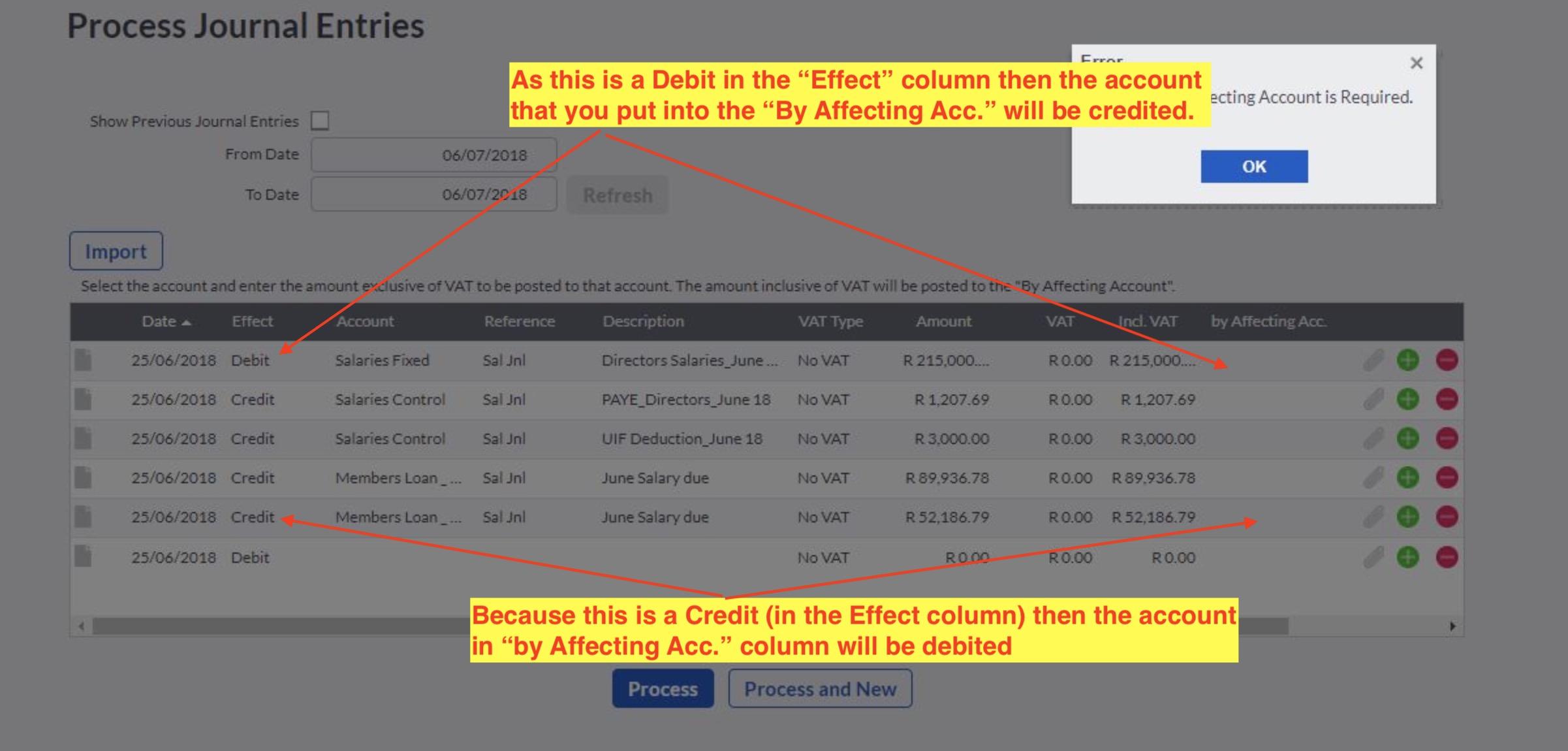
The “By Affecting Account” is the opposite side of the entry.
So if “Effect” is debit then the account you put into the “By Affecting Acc.” will be credited and vice-versa.
See screenshot below.
So what you would do for your example of
Dr X
Dr X
Dr X
CR Y
is have 3 lines for each of the X line with the Effect column as Debit.
Then for each of those same 3 lines you will have Y as the account under the “By Affecting Acc.” column.
Please let me know if that clears it up for you.
 June 24, 2018 at 6:07 pm #4492
Hi Lynette
I’m not sure what you referring to.
Can you please advise the lesson number and page number.
Remember, the only way to use Sage One during the course is online – either on a training company or on the Demo company.
Kind regards
Zunaid
June 21, 2018 at 10:42 pm #4476Hi Lynette
These are items you should have processed in a previous activity so they should be showing.
You may have processed them in an incorrect period
Please check under
Banking -> Transactions -> Banking
Check the New Transactions and Reviewed Transactions Tab.
You can use the Search field to find them e.g. search for “Centurion” for the payment to the Centurion High School.
Kind regards
Zunaid
June 21, 2018 at 10:57 am #4473Hi Lynette
Yes, the manual was written by Sage a while ago and the demo company is running in current dates (as of today).
This is why its giving the error.
So use dates from the current month – say start date of 10/7/2018 and end date 31/7/2019.
The main thing is to understand the principle.
Kind regards
Zunaid
June 21, 2018 at 8:58 am #4471Good morning Lynette
Please see the other thread this is answered on.
Kind regards
Zunaid
June 21, 2018 at 8:57 am #4470Hi Lynette
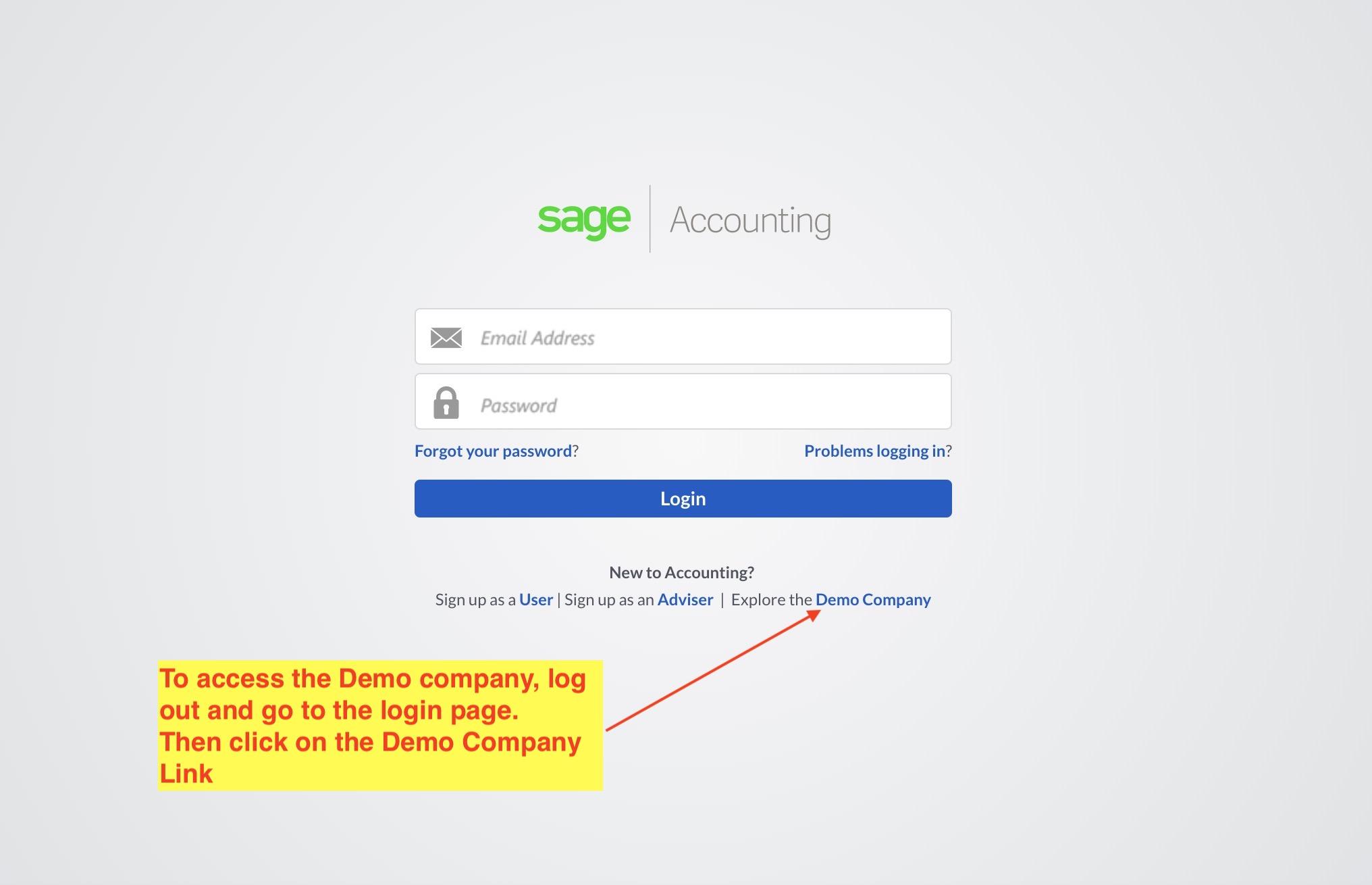
First log out.
Then go to the login page i.e.
https://accounting.sageone.co.za/Landing/Default.aspx
Then see the screenshot below.
 June 20, 2018 at 1:09 pm #4462
Hi Lynette
Just a note – please create a new post for each new question as it makes it easier for anyone searching the forum later on.
Please follow the instructions as per the manual i.e. for this section you do need to work in the demo and not in the training company.
Kind regards
Zunaid
June 12, 2018 at 9:22 am #4396Hi Lynette
If you see at the bottom of Page 7 it says that the Tab will not be active for a new supplier.
Please see this video
Kind regards
Zunaid -
AuthorPosts